.png?fit=max&auto=format&n=z7mn2_Xnb9V482Ot&q=85&s=a7da8ae8f848315623c283d39843d7f2)
.png?fit=max&auto=format&n=z7mn2_Xnb9V482Ot&q=85&s=b93021eebe7a4c4147a406759ca21037)
Before you start
You’ll need each of these set up on Apple’s side before Rey can build and submit your app.Apple Developer account
Enroll in the Apple Developer Program ($99 USD/year).
Bundle ID
Register a unique identifier for your app.
App record in App Store Connect
Create the App Store listing your builds will be uploaded to.
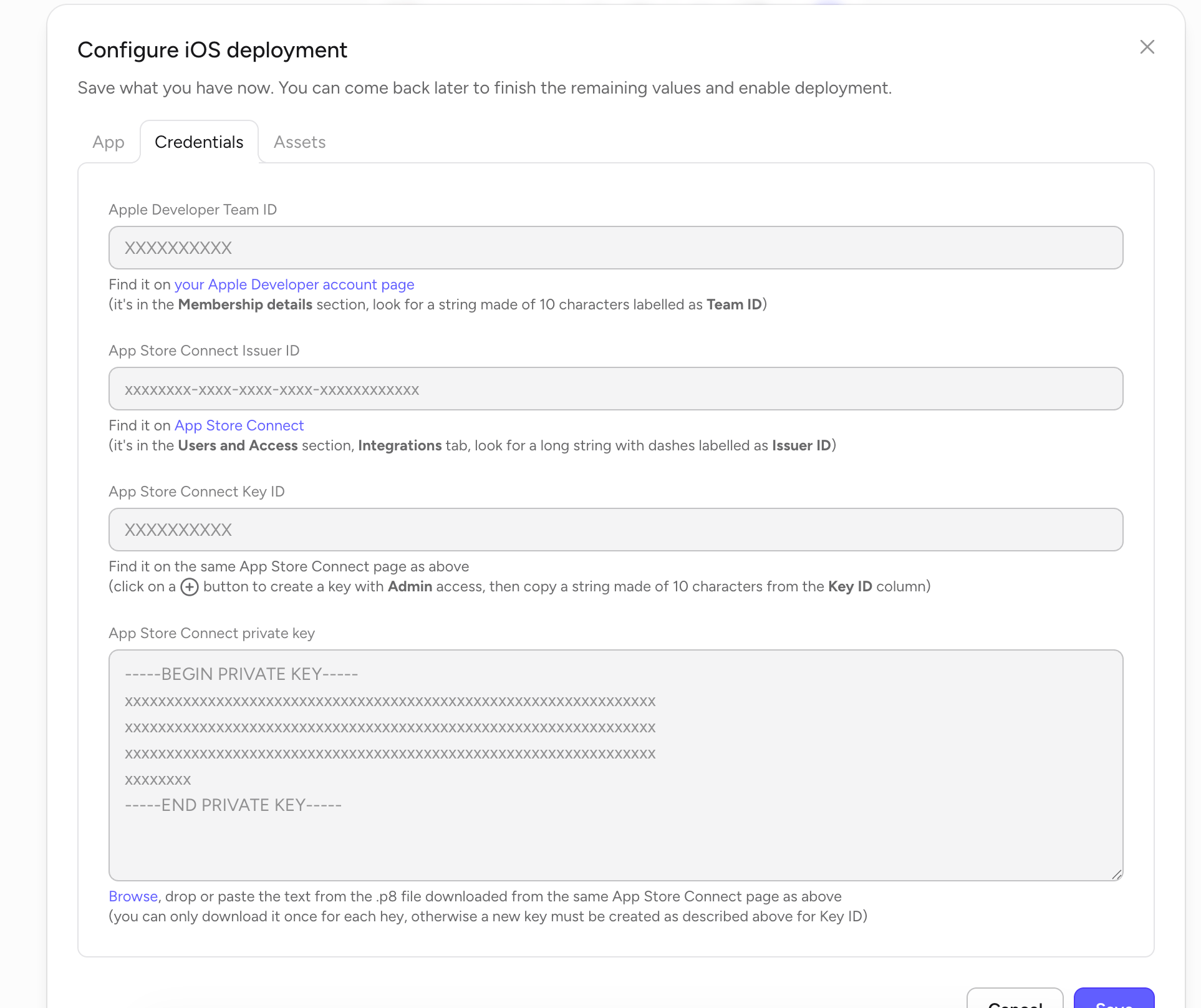
App Store Connect API key
Team ID, Issuer ID, Key ID, and the
.p8 private key.Configure iOS deployment
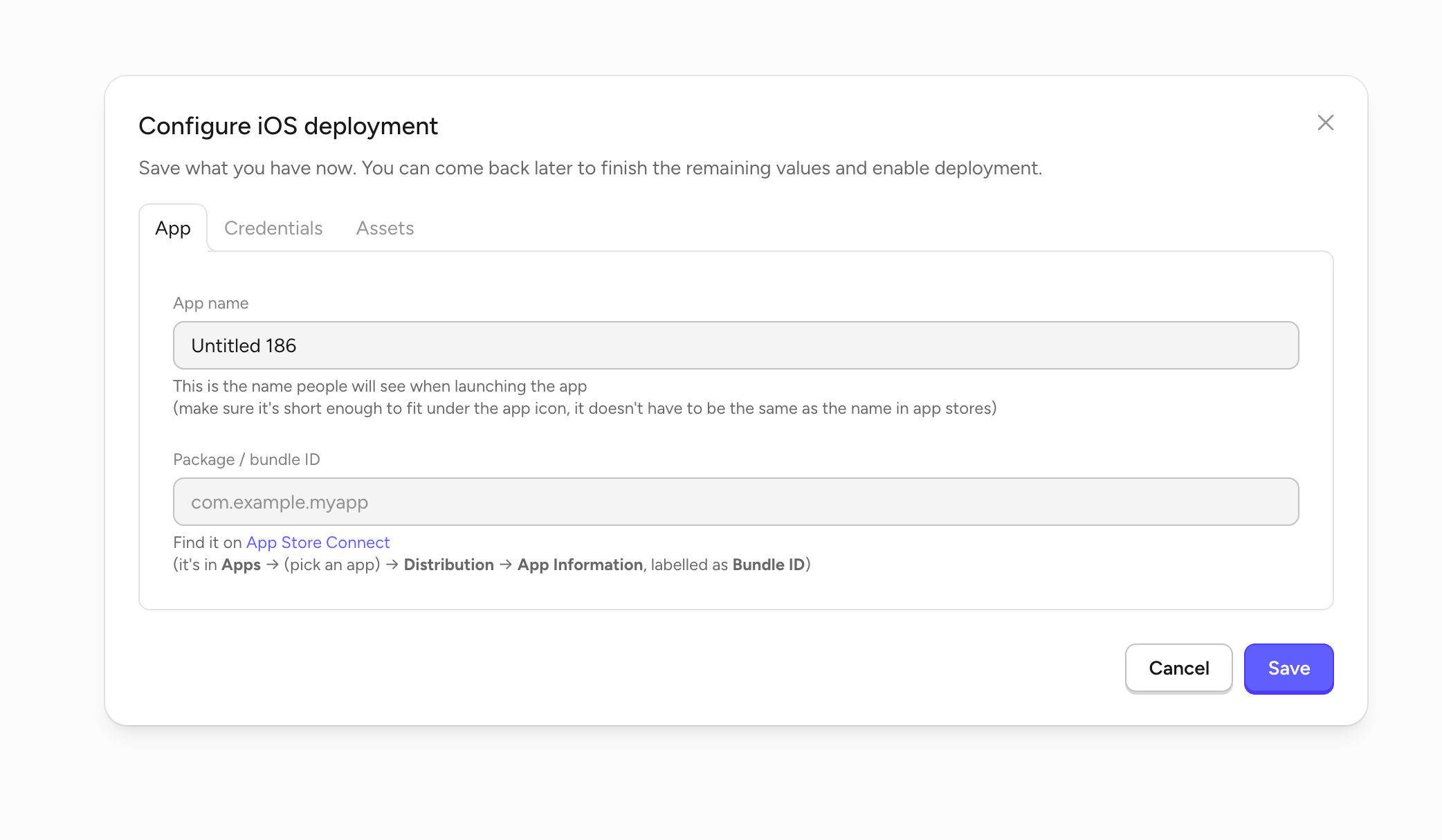
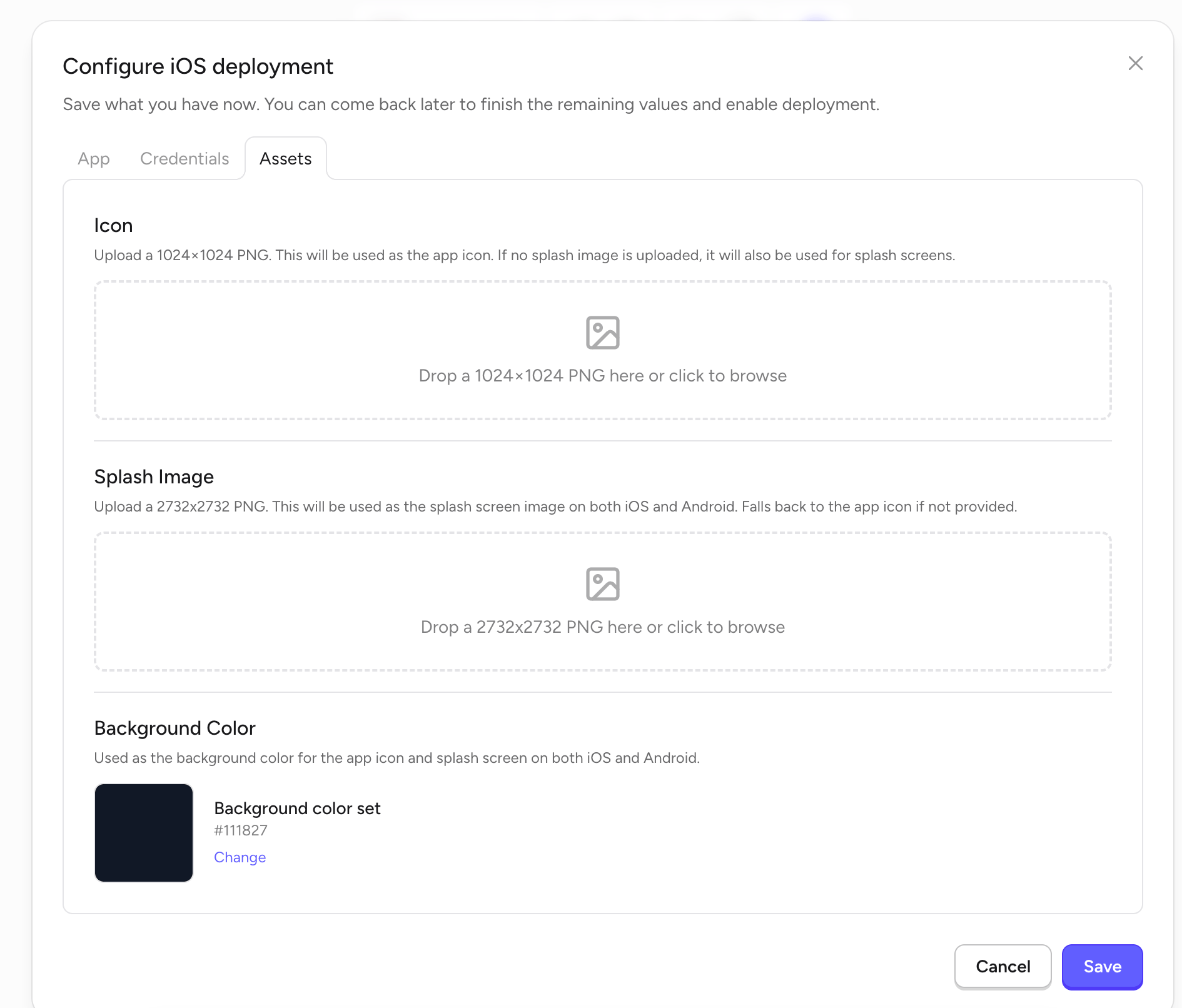
Open your app in Rey, click Publish in the top toolbar, and choose iOS. The Configure iOS deployment dialog has three tabs — App, Credentials, and Assets. You can save partially and come back later.- App
- Credentials
- Assets
Submit your app
1
Fill out all three tabs
Complete App, Credentials, and Assets in the Configure iOS deployment dialog, then click Save.
2
Click Publish to App Store
Rey builds your app, signs it with your credentials, and uploads it to App Store Connect.
3
Finish the listing in App Store Connect
Log in to App Store Connect to add screenshots, description, keywords, category, and age rating, then submit for review.
4
Monitor your review status
Apple’s review process typically takes 1–3 business days.