The canvas is the heart of Rey — it’s the central editing area where you visually design every screen of your app. Everything you see in your app is placed, sized, and styled directly on the canvas, with no code required. Understanding how the canvas works will help you move faster and build with more confidence.

Canvas layout

Rey’s editor keeps the workspace intentionally minimal so your screen designs stay front and center. There are three things to know:
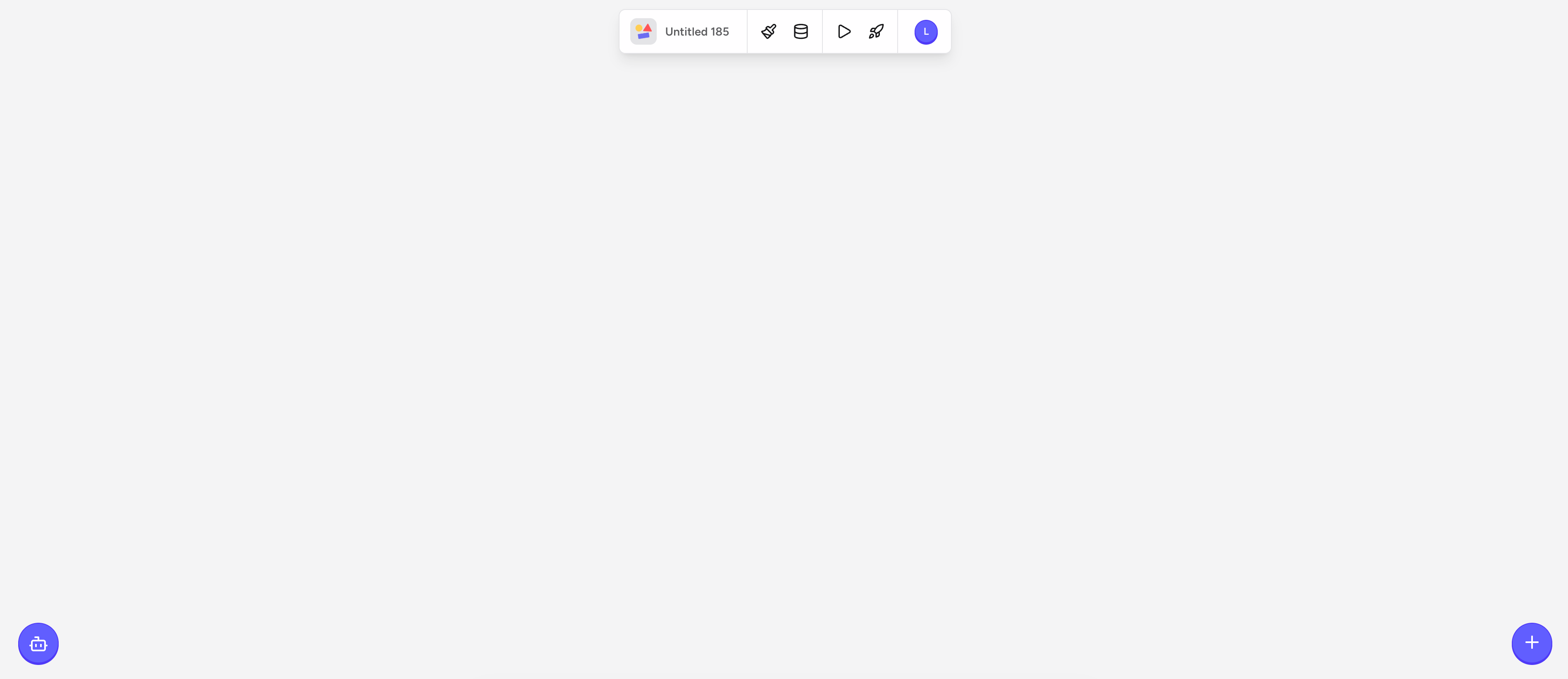
Rey editor showing the top toolbar and the bot and plus icons at the bottom corners of an empty canvas

The canvas

The full editing surface where you arrange, resize, and compose your app’s screens visually.

Top toolbar

Opens the Design panel (paintbrush), the Data panel (database), Preview (play), and Publish (rocket).

Bottom icons

The bot icon (bottom-left) opens Rey AI, and the + icon (bottom-right) adds new screens and components.

Adding elements to the canvas

To add a new element to your screen, click the + button in the bottom-right of the canvas to open the component palette. Pick a category — Screen, Layout, Text, Button, Image, or More — and choose an element to drop it onto your screen.
Instead of building a screen from scratch, click the bot icon in the bottom-left to open Rey AI and describe the screen you need — for example, “A profile page with an avatar, display name, bio, and an edit button.” Rey AI generates the layout and places components on the canvas automatically. Select any element to refine it via its property toolbar, giving you the best of both AI speed and manual precision.