.png?fit=max&auto=format&n=z7mn2_Xnb9V482Ot&q=85&s=a7da8ae8f848315623c283d39843d7f2)
.png?fit=max&auto=format&n=z7mn2_Xnb9V482Ot&q=85&s=b93021eebe7a4c4147a406759ca21037)
Edit mode
A sandbox where you design and iterate against mock data without affecting real users.
Live mode
A view of your published app running against real user data, where you can manage the data and settings that power the live experience.
Edit mode
When you open a Rey project, you always start in Edit mode. This is your sandbox — a safe environment for designing screens, wiring up logic, and iterating on your data model without any of it reaching your users.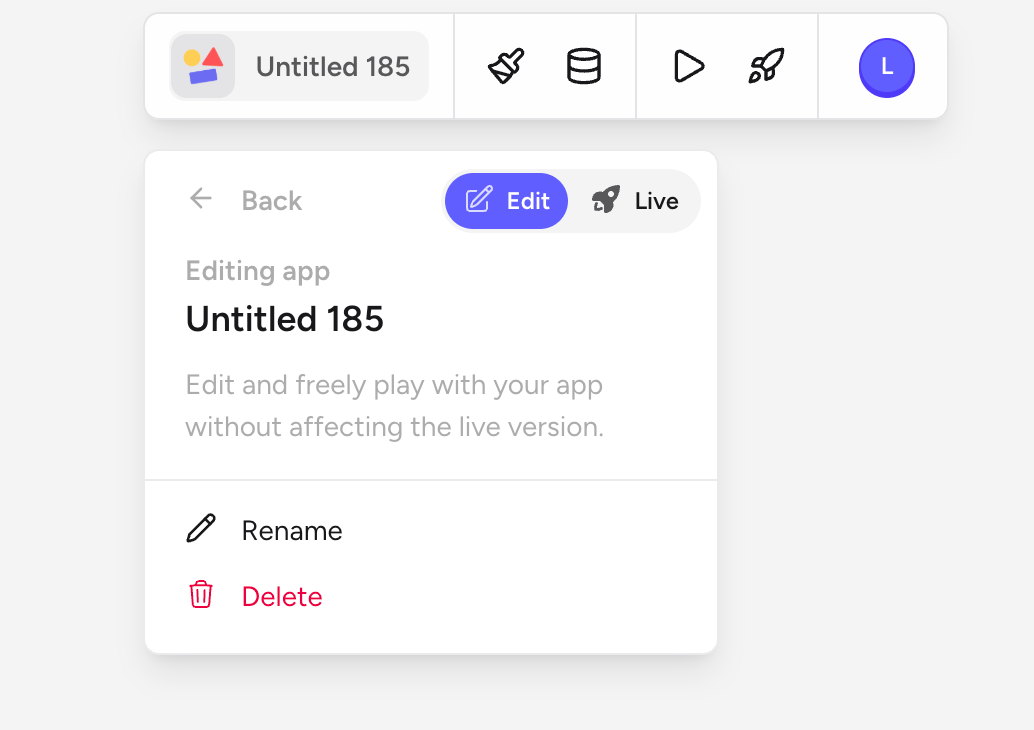
- Mock data everywhere. Lists, detail screens, and any data-bound components render sample entries from your tables so you can see realistic layouts while you build. Nothing you do here writes to your live database.
- Full editing surface. Add screens, components, tables, fields, actions, and rules. Rearrange freely — everything is scratchpad until you publish.
- No user impact. Because Edit mode is completely isolated from the live app, you can experiment, break things, and roll back without worrying about user-facing consequences.
- Rey AI is available. Generate screens, tables, and copy from prompts — all inside the sandbox.
Live mode
Live mode becomes meaningful once you’ve published your app. It’s where you preview exactly what your users see today and manage the data and settings that power the live experience.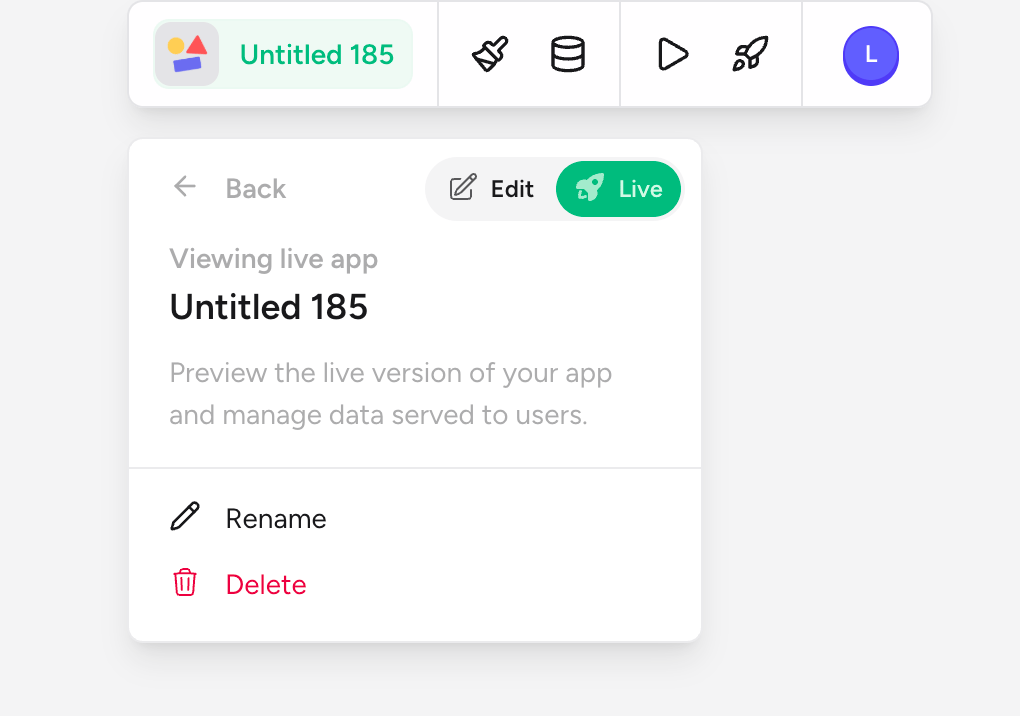
- Real user data. Tables show the actual entries your users have created. This is the same data your published iOS, Android, and web builds are reading and writing.
- Preview the published app. The canvas renders the last version you published, not your in-progress edits. Use it to sanity-check the current release from your users’ perspective.
- Manage live settings. Configure the things that only make sense once an app is in production — API keys for integrations, environment-specific values, and other settings that shouldn’t apply to your Edit sandbox.
- Read-only design. You can’t edit screens, components, or table schemas from Live mode. All structural changes flow through Edit mode and are released with a new publish.
Switching between modes
Use the Edit / Live toggle in the top toolbar to switch modes at any time. Rey color-codes the state so it’s always obvious which mode you’re in — Edit uses indigo, Live uses green.1
Design in Edit mode
Build screens, tables, and logic in the sandbox. Iterate freely — nothing reaches your users yet.
2
Publish when you're ready
Ship your changes to the App Store, Google Play, or the web. See Publishing for the full release flow.
3
Verify in Live mode
Flip to Live mode to confirm the published version behaves as expected against real user data and to manage any production-only settings.
When to use each mode
Structural changes always come from Edit mode and go live via publishing. Live mode is for observing and operating the published app — not for redesigning it.