> ## Documentation Index
> Fetch the complete documentation index at: https://docs.reyapp.io/llms.txt
> Use this file to discover all available pages before exploring further.
# Publish Your Rey App to the Apple App Store
> Submit your Rey app to the Apple App Store so real users can discover and download it — no Xcode or coding required.
Publishing to the Apple App Store puts your app in front of over a billion iPhone and iPad users. Rey handles the build, code signing, and submission — you focus on filling out the **Configure iOS deployment** dialog.
## Before you start
You'll need each of these set up on Apple's side before Rey can build and submit your app.
Enroll in the Apple Developer Program (\$99 USD/year).
Register a unique identifier for your app.
Create the App Store listing your builds will be uploaded to.
Team ID, Issuer ID, Key ID, and the `.p8` private key.
## Configure iOS deployment
Open your app in Rey, click **Publish** in the top toolbar, and choose **iOS**. The **Configure iOS deployment** dialog has three tabs — **App**, **Credentials**, and **Assets**. You can save partially and come back later.
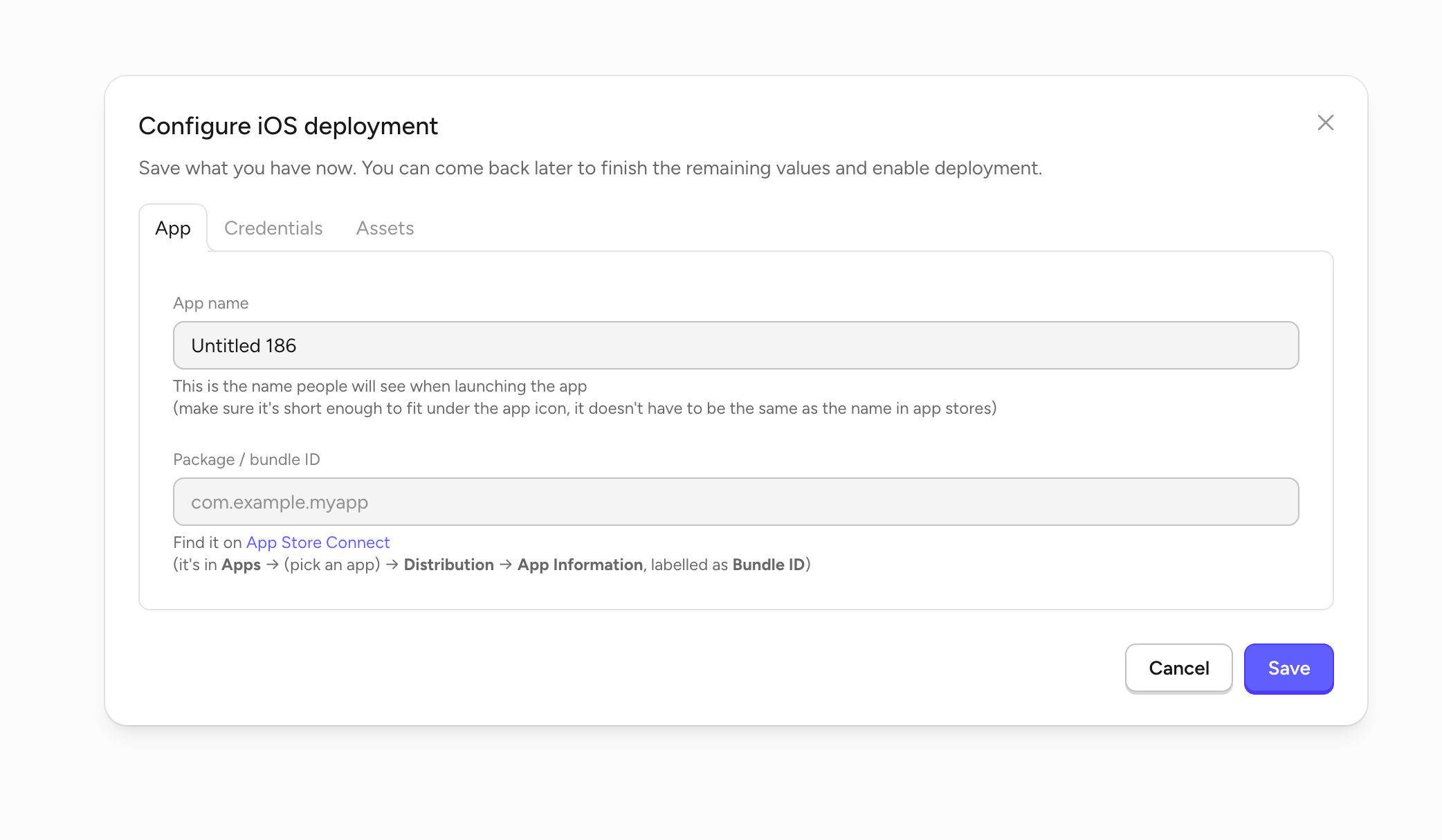 | Field | What to enter |
| ----------------------- | ----------------------------------------------------------------------------------------------------------------------------------------------------------------------------------------- |
| **App name** | The name people see under the app icon on their home screen. Keep it short so it fits — it doesn't have to match your App Store listing name. |
| **Package / bundle ID** | The Bundle ID you registered earlier (e.g. `com.yourcompany.yourapp`). Find it in App Store Connect under **Apps → (your app) → Distribution → App Information**, labelled **Bundle ID**. |
See [Register a Bundle ID](/publishing/app-stores/app-store/register-bundle-id) if you haven't created one yet.
| Field | What to enter |
| ----------------------- | ----------------------------------------------------------------------------------------------------------------------------------------------------------------------------------------- |
| **App name** | The name people see under the app icon on their home screen. Keep it short so it fits — it doesn't have to match your App Store listing name. |
| **Package / bundle ID** | The Bundle ID you registered earlier (e.g. `com.yourcompany.yourapp`). Find it in App Store Connect under **Apps → (your app) → Distribution → App Information**, labelled **Bundle ID**. |
See [Register a Bundle ID](/publishing/app-stores/app-store/register-bundle-id) if you haven't created one yet.
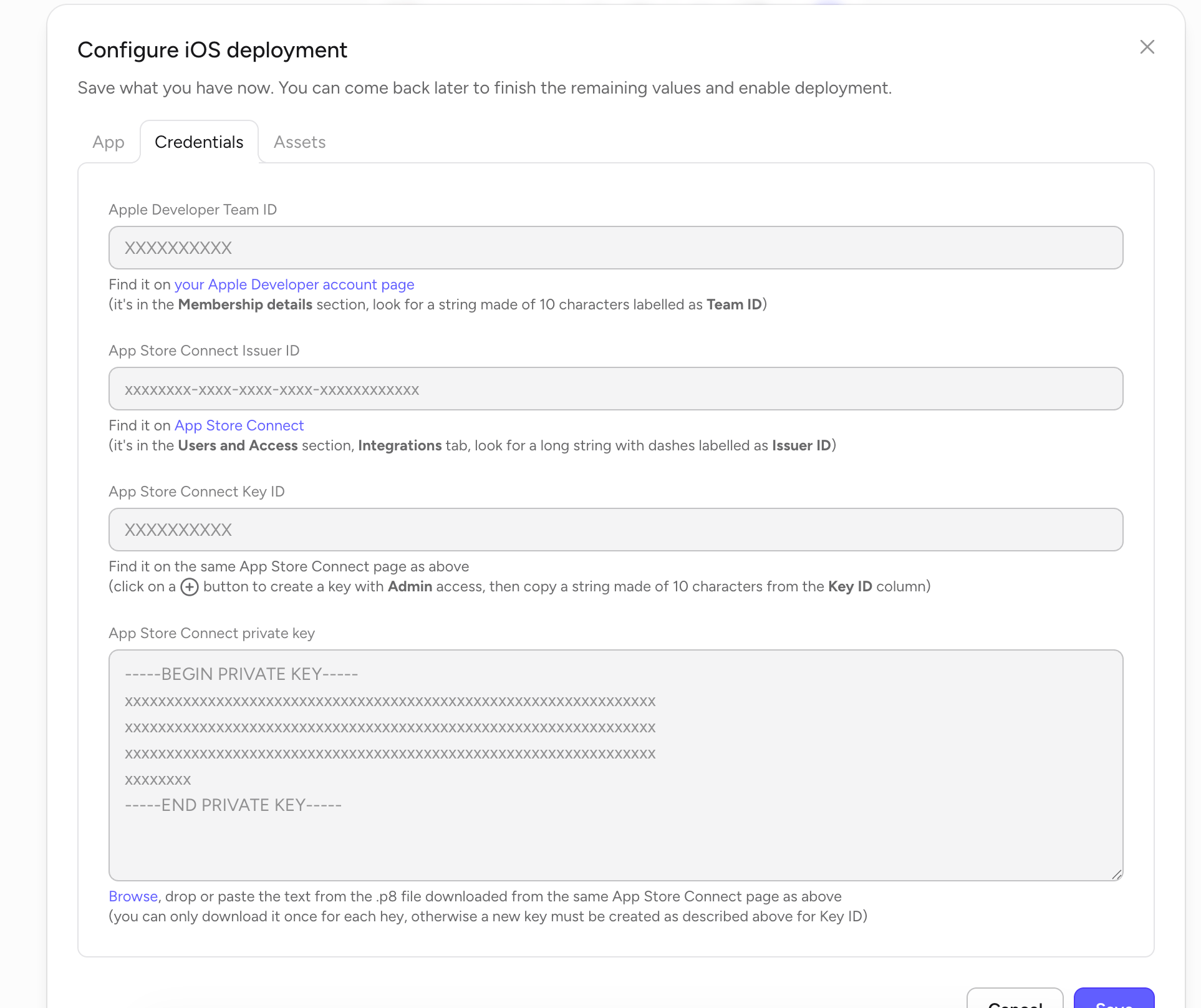 Four values connect Rey to your Apple account so it can upload builds on your behalf:
* **Apple Developer Team ID**
* **App Store Connect Issuer ID**
* **App Store Connect Key ID**
* **App Store Connect private key** (`.p8` file contents)
Full walkthrough with links to where each value lives: [Get your App Store Connect credentials](/publishing/app-stores/app-store/credentials).
Four values connect Rey to your Apple account so it can upload builds on your behalf:
* **Apple Developer Team ID**
* **App Store Connect Issuer ID**
* **App Store Connect Key ID**
* **App Store Connect private key** (`.p8` file contents)
Full walkthrough with links to where each value lives: [Get your App Store Connect credentials](/publishing/app-stores/app-store/credentials).
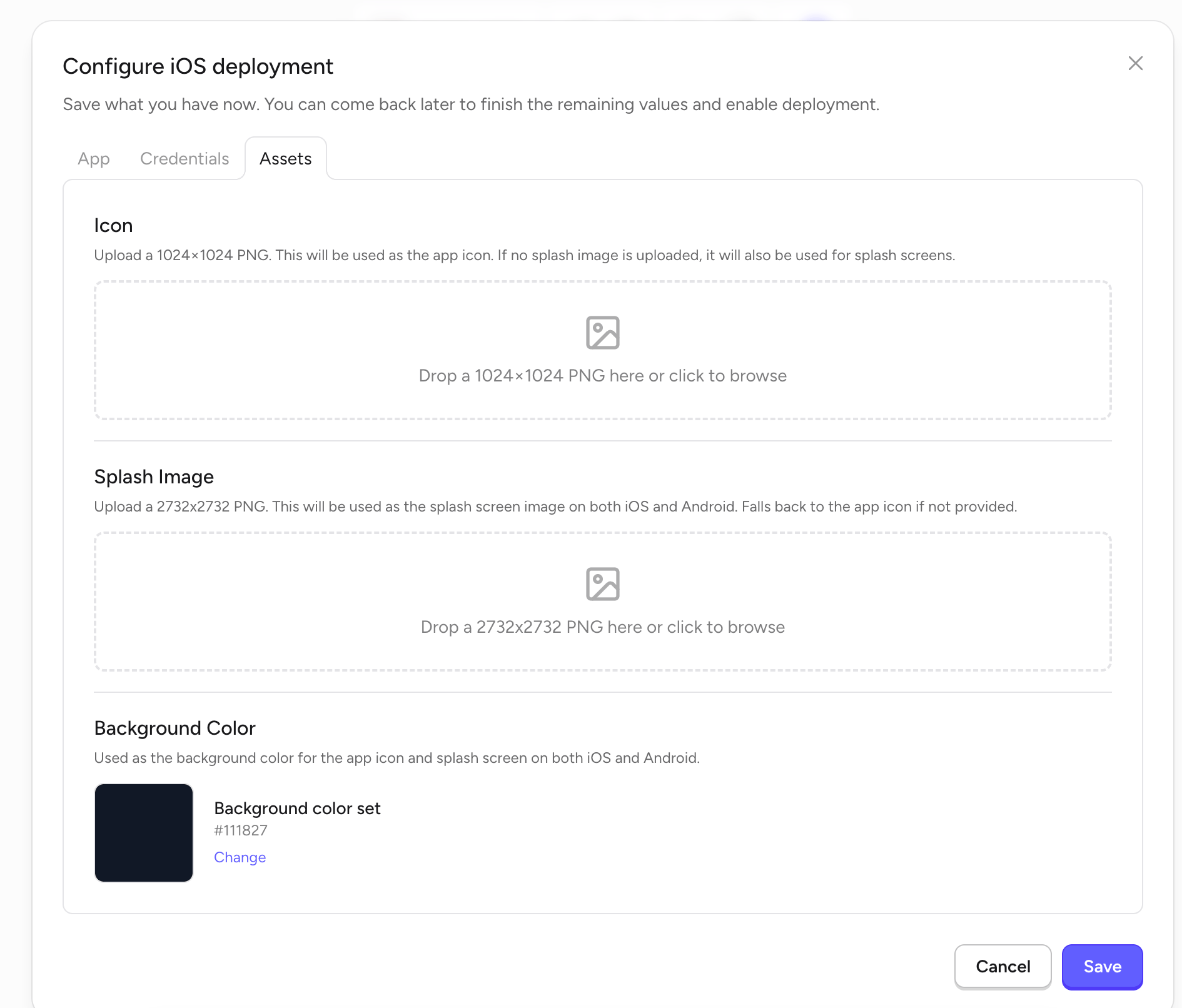 | Asset | Requirement |
| -------------------- | ----------------------------------------------------------------------------------------------- |
| **Icon** | 1024×1024 PNG. Used as the app icon and, if no splash image is provided, as the splash screen. |
| **Splash Image** | 2732×2732 PNG. Shown on launch on both iOS and Android. Falls back to the icon if not uploaded. |
| **Background Color** | Hex color used behind the icon and splash on both platforms. |
Use a PNG with no transparency for your icon — Apple rejects icons with alpha channels.
## Submit your app
Complete **App**, **Credentials**, and **Assets** in the Configure iOS deployment dialog, then click **Save**.
Rey builds your app, signs it with your credentials, and uploads it to App Store Connect.
Log in to [App Store Connect](https://appstoreconnect.apple.com) to add screenshots, description, keywords, category, and age rating, then submit for review.
Apple's review process typically takes **1–3 business days**.
Make sure your app complies with [Apple's App Store Review Guidelines](https://developer.apple.com/app-store/review/guidelines/) before submitting. Common rejection reasons include misleading descriptions, broken functionality, and missing privacy disclosures.
## Publishing app updates
When you're ready to release a new version, make your changes in the Rey editor and click **Publish** again. Rey increments the version number, rebuilds, and resubmits to App Store Connect. You don't need to touch Xcode or any build tooling.
## Plan requirements
Publishing to the App Store is included on all paid plans — **Starter**, **Grow**, and **Scale**.
| Asset | Requirement |
| -------------------- | ----------------------------------------------------------------------------------------------- |
| **Icon** | 1024×1024 PNG. Used as the app icon and, if no splash image is provided, as the splash screen. |
| **Splash Image** | 2732×2732 PNG. Shown on launch on both iOS and Android. Falls back to the icon if not uploaded. |
| **Background Color** | Hex color used behind the icon and splash on both platforms. |
Use a PNG with no transparency for your icon — Apple rejects icons with alpha channels.
## Submit your app
Complete **App**, **Credentials**, and **Assets** in the Configure iOS deployment dialog, then click **Save**.
Rey builds your app, signs it with your credentials, and uploads it to App Store Connect.
Log in to [App Store Connect](https://appstoreconnect.apple.com) to add screenshots, description, keywords, category, and age rating, then submit for review.
Apple's review process typically takes **1–3 business days**.
Make sure your app complies with [Apple's App Store Review Guidelines](https://developer.apple.com/app-store/review/guidelines/) before submitting. Common rejection reasons include misleading descriptions, broken functionality, and missing privacy disclosures.
## Publishing app updates
When you're ready to release a new version, make your changes in the Rey editor and click **Publish** again. Rey increments the version number, rebuilds, and resubmits to App Store Connect. You don't need to touch Xcode or any build tooling.
## Plan requirements
Publishing to the App Store is included on all paid plans — **Starter**, **Grow**, and **Scale**.