> ## Documentation Index
> Fetch the complete documentation index at: https://docs.reyapp.io/llms.txt
> Use this file to discover all available pages before exploring further.
# Tables
> Create tables in Rey's built-in database — name your table, set permissions, and define the fields that describe each entry.
Tables are the containers for your app's data. Each table stores **entries** (records) that share the same set of **fields** (typed columns). This page walks through creating one from scratch.
## Create a new table
Click the **database icon** in the top toolbar to open the Data panel.
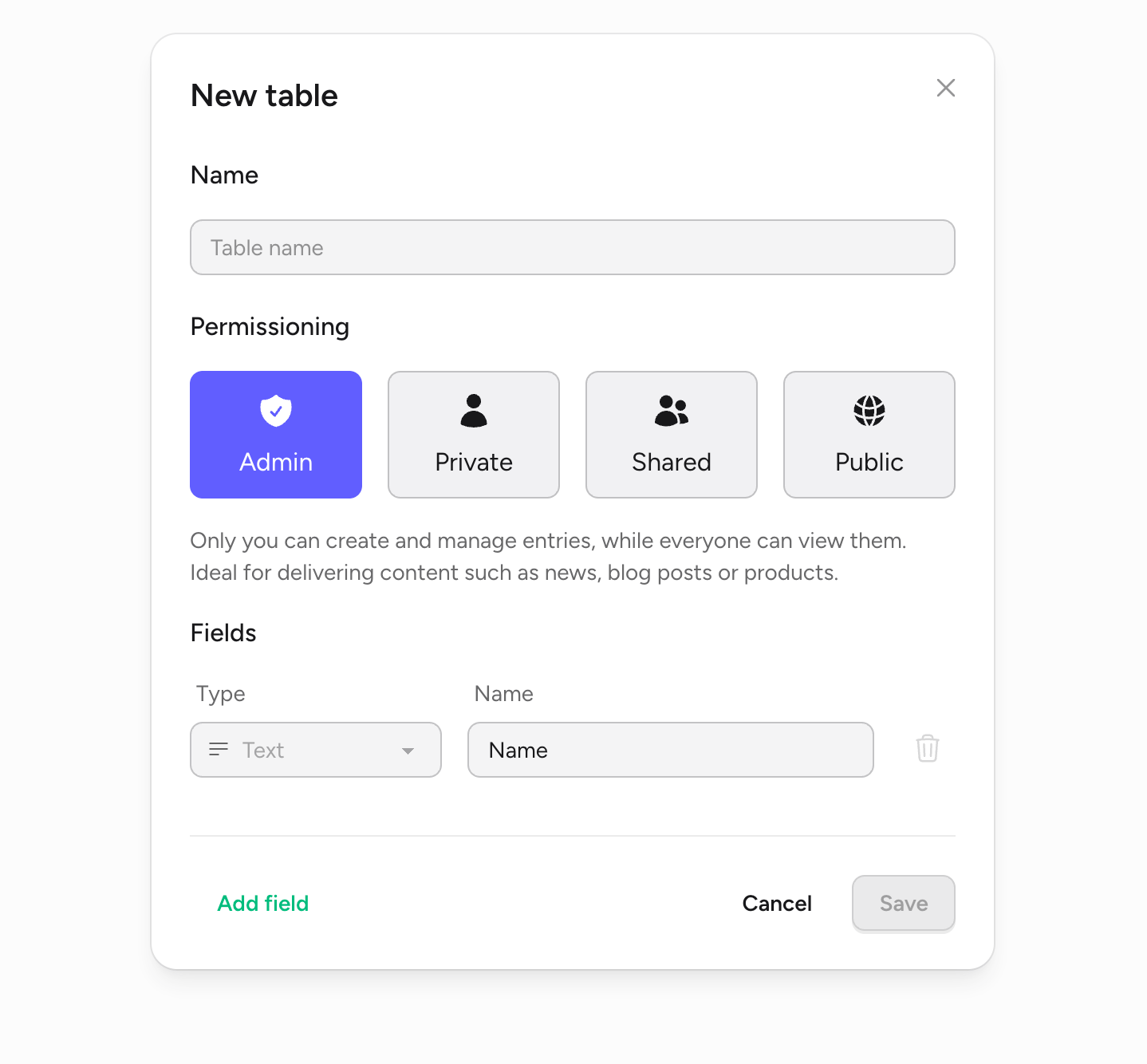
At the bottom of the panel, click **+ New table**. The New table dialog opens.
Enter a descriptive name (e.g., `Tasks`, `Products`, `Posts`).
Pick one of the four permission modes (see [Permissions](#permissions) below).
Every table starts with a **Name** text field. Click **Add field** to add more, choose a type, and give each one a name.
Click **Save**. Your table is created and available to bind to components.
 ## Permissions
Permissions control who can create, edit, and view entries at runtime in your live app. Pick the mode that matches how the data is meant to be used.
**Only you can create and manage entries, while everyone can view them.**
Ideal for delivering content such as news, blog posts, or products.
**Users privately create, view, and manage their own entries.**
Works well for personal data such as tasks, personal notes, or habit trackers.
**Users create and manage their own entries while everyone can view them.**
Great for community-driven content like forums or recipe sharing.
**Everyone can create, edit, and view any entry.**
Use this for open collaboration, such as brainstorming boards or shared to-do lists.
## Field types
When you add a field, pick the type that matches the shape of the data. The type controls the input Rey renders in the data grid and what you can bind to on the canvas.
## Permissions
Permissions control who can create, edit, and view entries at runtime in your live app. Pick the mode that matches how the data is meant to be used.
**Only you can create and manage entries, while everyone can view them.**
Ideal for delivering content such as news, blog posts, or products.
**Users privately create, view, and manage their own entries.**
Works well for personal data such as tasks, personal notes, or habit trackers.
**Users create and manage their own entries while everyone can view them.**
Great for community-driven content like forums or recipe sharing.
**Everyone can create, edit, and view any entry.**
Use this for open collaboration, such as brainstorming boards or shared to-do lists.
## Field types
When you add a field, pick the type that matches the shape of the data. The type controls the input Rey renders in the data grid and what you can bind to on the canvas.
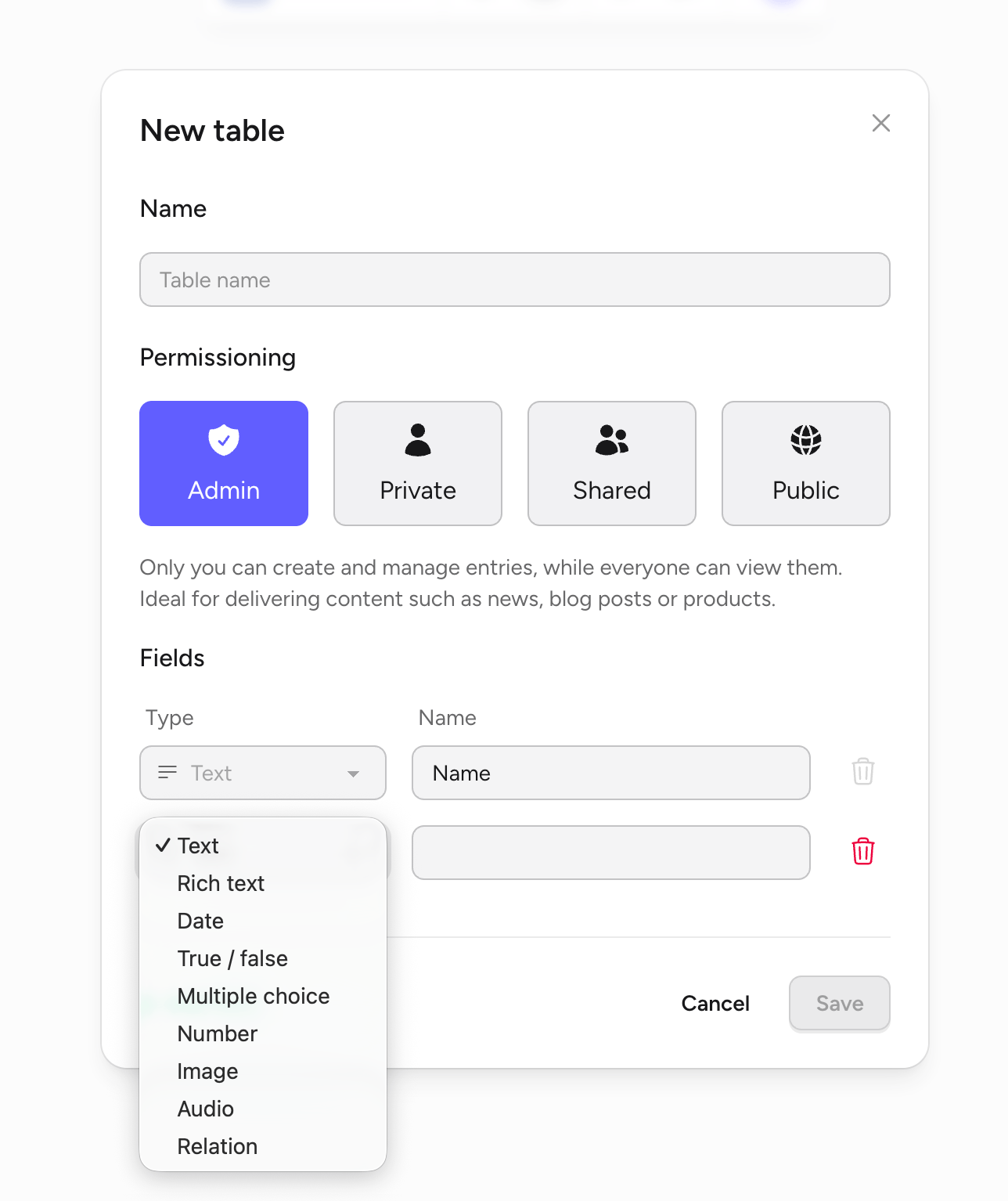 | Type | Use for |
| ------------------- | ------------------------------------------------------------------------------- |
| **Text** | Names, descriptions, labels, URLs, and other freeform strings. |
| **Rich text** | Long-form content with formatting — headings, bold, links, lists. |
| **Date** | A date or date-and-time value. Rey renders a date picker. |
| **True / false** | Boolean flags like `Is active`, `Completed`, or `In stock`. |
| **Multiple choice** | A fixed set of options (e.g., `Draft`, `Published`, `Archived`). |
| **Number** | Integers and decimals — prices, counts, ratings. |
| **Image** | An uploaded image. Bind to an Image component to render it. |
| **Audio** | An uploaded audio file. Bind to an audio player component. |
| **Relation** | A link to an entry in another table (e.g., each `Order` links to a `Customer`). |
## Edit a table later
You can rename a table, change its permissions, or add and remove fields at any time from the Data panel. Setup changes are promoted to the live app the next time you publish — see [Data overview](/data/database) for how edit mode interacts with your published app.
| Type | Use for |
| ------------------- | ------------------------------------------------------------------------------- |
| **Text** | Names, descriptions, labels, URLs, and other freeform strings. |
| **Rich text** | Long-form content with formatting — headings, bold, links, lists. |
| **Date** | A date or date-and-time value. Rey renders a date picker. |
| **True / false** | Boolean flags like `Is active`, `Completed`, or `In stock`. |
| **Multiple choice** | A fixed set of options (e.g., `Draft`, `Published`, `Archived`). |
| **Number** | Integers and decimals — prices, counts, ratings. |
| **Image** | An uploaded image. Bind to an Image component to render it. |
| **Audio** | An uploaded audio file. Bind to an audio player component. |
| **Relation** | A link to an entry in another table (e.g., each `Order` links to a `Customer`). |
## Edit a table later
You can rename a table, change its permissions, or add and remove fields at any time from the Data panel. Setup changes are promoted to the live app the next time you publish — see [Data overview](/data/database) for how edit mode interacts with your published app.